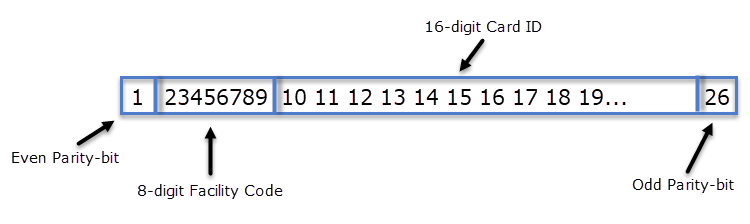
The Doors.NET software has the 26-bit Wiegand card format defined and added by default. This format has 1 parity bit, 8 bits for facility code, 16 bits for the card ID and a trailing parity bit. However, also, the NXT and Keri MS formats are added by default, but there are many other different Wiegand formats that can be used - we are compatible with many reader technologies and Wiegand formats.
Custom Wiegand formats are often more than 26-bit (allowing for more unique card numbers) and have varying complexity, parity checking and fields lengths, i.e for the facility code and card ID. However, most custom Wiegand formats used in access control systems will be less than 37-bit.
There are many non-standard Wiegand formats which have already been added to the Doors.NET custom format library, but it is also possible to add your own custom format to Doors.NET. Adding a custom Wiegand format is explained in section 5
Because Credential Types is a licensed feature it needs to be enabled. You can check it is enabled in the License Manager, click the Windows Start menu >> All Programs >> Doors.NET >> License Manager. When the License Manager opens click on the License tab. Scroll down and you will see Credential Types within the 'Options' section, verify this is set to True.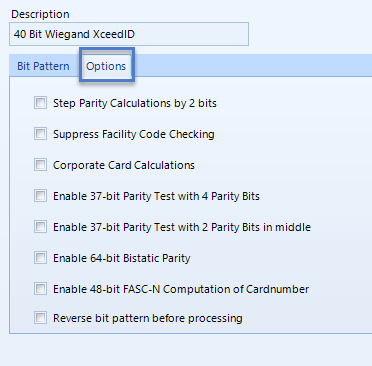
A custom format must be added to the credential types library if it does not already exist. Up to 8 different custom formats can be used concurrently with the MSC or SCP controller types. If you did not purchase the custom formatted cards from Keri Systems you will need to contact the supplier for details about how the Wiegand data is formatted on the card.


Step Parity Calculations by 2-bits - Moves the positions of the parity bits.
The Corporate Card Calculations check box changes how the card number is computed for this format. The card number is offset by the multiplying the facility code by the offset number.
The 64 bit with Bistatic Parity are for some of the Desfire formats. However, not all Desfire formats use that parity.
The Reverse bit pattern before processing flips the bits in reverse. Some formats are setup in this way.